
The answer your team needs is almost never in Slack. It is in a spreadsheet in someone's drive, a thread in someone's inbox, a page in Notion, or a file nobody has opened since March.
An AI search coworker sits in your Slack workspace, searches all of those places at once, reads what it finds, and answers in the channel. Here is how to add one, in four steps, in about five minutes.
The four steps
- Install the app. A Slack admin opens the install link and approves the scopes. About two minutes. The coworker then shows up under Agents & apps in the sidebar.
- Invite it to the channels it should serve. Type
/invite @HeyBobin each one. It sees nothing it has not been invited to. - Connect the tools it should search. Ask it in the channel: “connect Google Drive.” It posts a sign-in link in the thread. You complete the login yourself, and the connection is tied to your account, not a shared service key.
- Ask a real question. Mention it and say what you are looking for, in ordinary English. No syntax, no operators.
Step three is the one people underestimate. Connecting a tool is not an IT project here. Whoever owns the account clicks the link in the thread and signs in, which is why a team can get from install to first real answer in one sitting.
What it looks like when it works
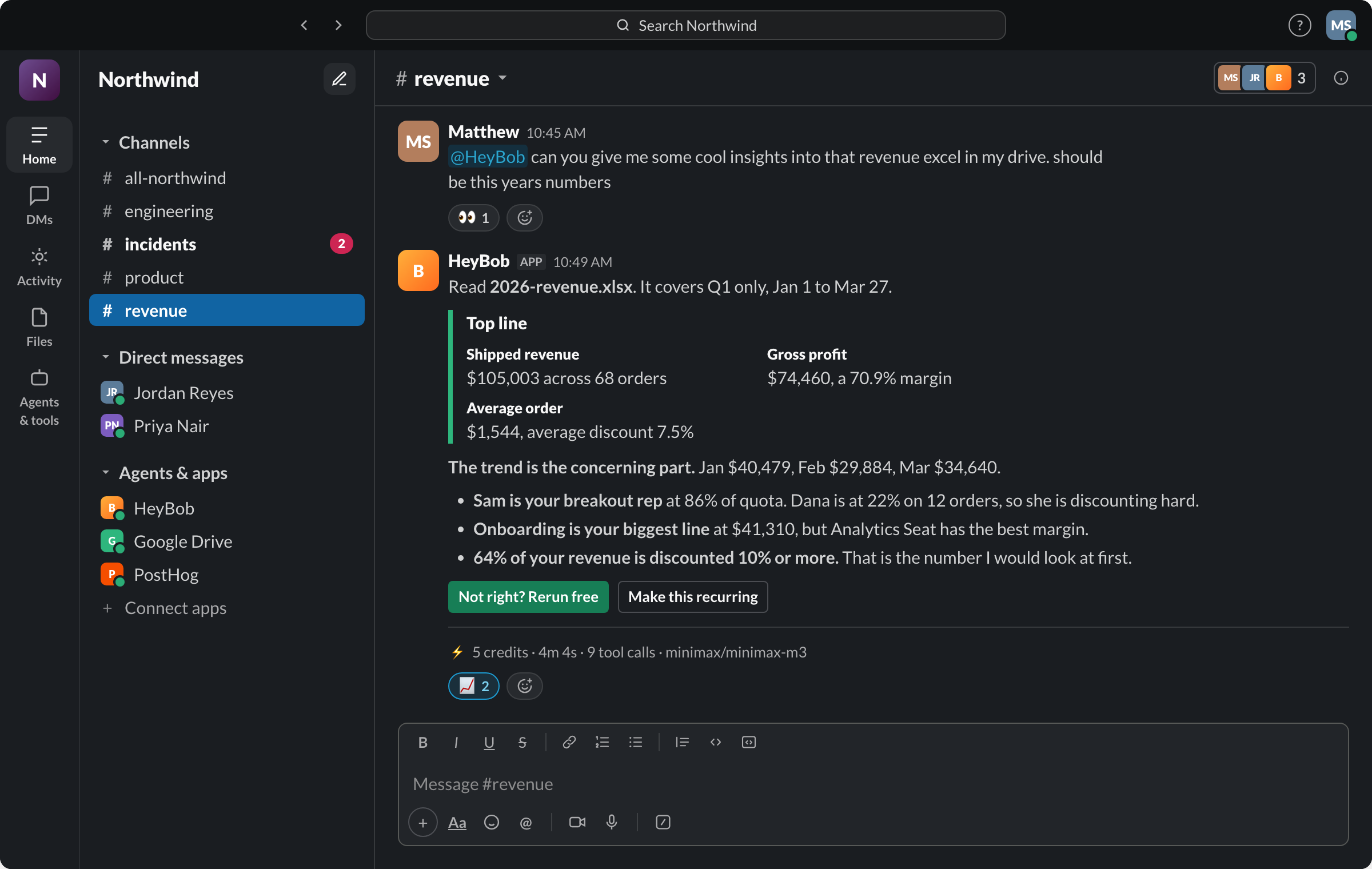
Note what the request did not contain: a file name, a folder, a link. “That revenue excel in my drive” was enough, because searching is the coworker's job, not yours.
The receipt under the run in the screenshot above, verbatim from production. Every finished run gets one. Ask “what ran this week” and Bob adds them up.
What a search coworker can actually search
Ask any vendor this question early, and ask for the tool names rather than a category. Bob's search reaches, among others:
- Slack itself. Full-text search across the messages in your workspace, plus reading a thread or a channel's history when the answer is buried in a conversation.
- Google Drive. Finding files, then opening them. Spreadsheets get read as data, not as text.
- Gmail and Outlook. Searching a mailbox for the thread where something was actually decided.
- Notion. Searching pages, then reading them.
- GitHub. Searching code, which is how “where do we set the retry limit” becomes a one-line answer.
Beyond those, Bob reaches 3,200+ apps, so the honest way to evaluate is to name your five most-searched systems and check them one by one. See the integrations list for the specifics.
Finding is half of it
Search stops at the answer. A coworker does not have to.
Once it has found the thing, the next request is usually obvious: file the ticket, update the record, send the summary, put it in the doc. That is where the difference between a search box and a coworker shows up, and it is also where the safety questions start.
Reading is read-only, so search itself needs no guardrail. Every external write, though, pauses for an approval card in the thread, with the tool, the target and the arguments spelled out, and Approve, Always allow and Deny as the choices. Nothing leaves your workspace until somebody presses a button. There is more on that in the approval workflow playbook.
What to check before you roll it out
- Channel scope. The app should see only the channels it is invited to, and a private channel should stay invisible until someone inside it invites the app.
- Whose credentials. A connection made under one person's login should act as that person, with their permissions, not as a shared admin account that can see everything.
- Read versus write. Confirm that search needs no write scope at all, and that writes are gated separately.
- Cost per question. Search is a habit, not an event. If the pricing is opaque per run, the bill will be a surprise. Bob's questions are typically an estimated 140 to 200 credits, and the receipt lands under each answer.
- The audit trail. An admin should be able to see what was searched, what was read, and what was changed, after the fact, without asking the person who ran it.
Then make it ask the question for you
The last step is the one most teams skip. Any question worth asking twice is worth putting on a schedule.
“Every Monday at 8, search the shared drive for last week's numbers and post the three things that changed” is the same search, running without anybody remembering it. A scheduled run usually costs the same as a question or less, depending on the model it runs on, and it arrives before the question does.
Common questions
What is an AI search coworker?
An app in your chat tool that searches your connected systems on request, reads what it finds, and answers the question. Ordinary search hands you a list of links. A search coworker hands you the answer, and can keep going into the follow-up work.
How long does it take to add one to Slack?
The Slack install takes about two minutes and needs an admin. Each tool connection after that takes under a minute, because the account owner signs in through a link in the thread.
Can it search private channels and DMs?
Only channels it has been invited to. A private channel stays invisible until somebody in it invites the app. Direct messages between other people are never in scope.
Does it need write access to my tools?
No. Searching and reading are read-only. Write access only matters when you want it to act on what it found, and with Bob every external write stops for an approval card in Slack first.
How is this different from the search built into Slack?
Built-in search covers messages and files inside Slack. A search coworker also reaches the systems where the answers actually live, and it reads the documents rather than only listing their titles.
Start with one question
Do not roll this out. Pick the question your team asks most often, the one that always ends with somebody digging through a drive, and hand it over.
If the answer comes back correct, with a receipt you can check, connect the second tool. That is a better evaluation than any demo, and it takes an afternoon.