
Many meeting note tools work by sending a bot into your call. It shows up in the participant list, someone has to let it in, and sooner or later a client asks who invited it. And if your meeting is not on a call at all, there is nothing for the bot to join.
The HeyBob app takes a different route. It listens on your Mac. No bot joins. There is nothing to connect. It also works in a room with no call app open. Then Bob writes the notes and, once you say so, does the follow-ups. This post says plainly what it does and what it does not do yet.
How it hears the meeting
The app listens to two things on your Mac: your microphone, and the sound your computer plays. That is all it needs.
Whatever app the call runs in, the other people come out of your speakers, so the app hears them. Zoom, Google Meet, Microsoft Teams, a Slack huddle: it makes no difference, and HeyBob never connects to any of them. There is nothing to install in the call and nobody to admit.
The first time, your Mac asks for two permissions. One is the microphone. The other it calls Screen Recording, which is simply how a Mac lets an app hear its own sound. HeyBob records sound only, never your screen. After you turn it on, quit and reopen HeyBob.
No call? It still works.
Because nothing has to join a call, there does not need to be one. Open the app in a meeting room, put your Mac on the table, and press Start recording. The microphone picks up the room. Interviews, one-on-ones over coffee, a whiteboard session: you still get notes, a summary and action items at the end.
Two things to know. The app still asks for both Mac permissions, even with no call. And it cannot tell people in a room apart yet, so everything the microphone hears shows up as you. Read the limits section below before you rely on it for a big room.
While the meeting runs
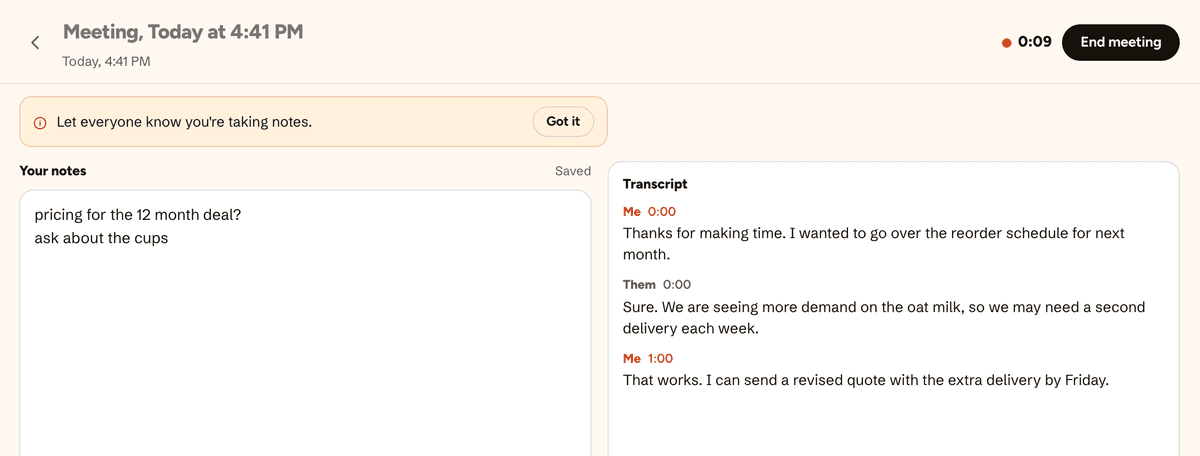
You get two panes. On the left is a notepad. Type rough notes however you like. On the right, a live transcript builds as people talk, about a minute behind the room.
When the app starts recording it shows a reminder: let everyone know you're taking notes. Do that. Tell people you are recording, the same way you would if you pulled out a voice recorder.
Press End meeting when you are done. A minute or two later, Bob has your notes.
What Bob writes
Bob takes what you typed and what was said, and writes three things.
- Clean notes. Every point you typed, filled out with what the transcript adds: the decisions, the open questions, the details worth keeping.
- A short summary. Two or three plain sentences.
- Action items. Everything someone agreed to do, with the owner when the meeting made it clear.
Then he does the follow-ups
This is where a note-taker usually stops. You get a tidy page, and the work is still on you.
With HeyBob, Bob lists the action items in your chat with him, each with two buttons: Do it and Skip. The same buttons sit under your notes in the app. Tap Do it and Bob starts the job with the apps he is already connected to, the same way he does when you ask him in a message. Skip, and he does nothing. Nothing runs until you tap.
Anything that sends or changes something outside HeyBob follows the same approval rules as the rest of Bob's work: by default, it waits for your OK. You stay the one who says go.
If your team uses Slack, Bob also asks where the summary should go: a channel, or nowhere. He posts only the summary, never the transcript or your own notes. And a week later, you can ask him “what did we decide about pricing?” and he searches the meetings you recorded. Only yours.
Bot or no bot
| A bot joins your call | HeyBob app | |
|---|---|---|
| Shows up in the participant list | Yes | No |
| Needs a call to join | Yes | No |
| Works for an in-person meeting | No | Yes, with your microphone |
| After the notes | Often stops at notes | Bob does the follow-ups when you tap Do it |
What happens to the audio
HeyBob does not keep the audio. The app cuts the recording into one-minute pieces and sends each one to be turned into text. Then the audio is discarded, and the app deletes its own copy once the piece has gone up. If you are offline, unsent pieces wait on your Mac until they upload.
What stays is the text: your notes, the summary, the action items and the transcript. They belong to you. Teammates cannot open the meetings you record, and you can delete any meeting for good once it ends. Summaries you posted, action items sent to your DM, Bob’s answers about it, and jobs started from it stay where they are.
Transcribing and writing the notes use credits, from the same pool as the rest of Bob's work. The app shows what each meeting cost. If your workspace hits its monthly spend cap, transcription stops with a message, and the notes you type keep saving.
What it does not do yet
It is new, and we would rather you hear the limits from us.
- Mac only. It needs macOS 13 or newer. Windows is planned, with no date yet.
- No speaker names. The transcript says Me for your microphone and Them for everything your computer plays. It does not tell individual people apart.
- Big rooms are harder. A Mac microphone across a long table hears less than one near you. Try it on a real meeting first.
- The transcript lags. It shows up about a minute behind the conversation.
- Bob can be wrong. Like any AI, he can miss or misread something. Read the notes before you act on them.
Try it on your next meeting
Download the app for Mac, sign in with Slack or the email your invite went to, and press Start recording. If your team uses Slack, Bob's Home tab there also has a Record a meeting button that opens the app for you. The meeting notes page has the short version.
You take the meeting. Bob takes the follow-ups.