
Meeting notes with no bot in the call.
HeyBob listens on your Mac, so no bot joins your call and there is nothing to connect. It works in a meeting room too. Afterwards Bob writes the notes and, when you tap Do it, does the follow-ups.
On Mac today. Windows is planned, with no date yet.
The meeting ends. Bob starts on the follow-ups.
From the meeting to the done list.
You talk. Bob listens, writes it up, and offers to do what was agreed, with the apps he is already connected to.
No bot. Nothing to connect. No call needed.
Many note-takers have to get into your meeting. HeyBob sits on your side of the screen instead.
- Zoom
- Google Meet
- Microsoft Teams
- Slack huddles
- A room with no call at all
HeyBob never connects to these apps. It hears what your Mac hears.
Any call app
The other people come out of your speakers, so HeyBob hears them. There is nothing to connect and nobody to let in.
No extra guest
No bot name in the participant list. Your call looks the way it always does.
In person works too
Meeting in a room? Press Start recording and the microphone picks up the room. No call app has to be open.
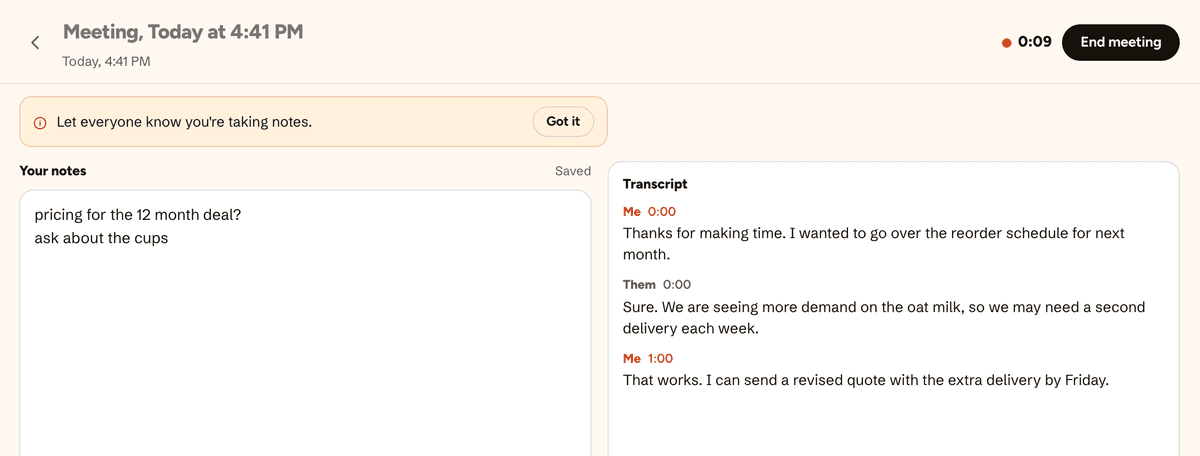
Press record. Type what you like.
Your own notes stay in charge. Bob fills in the rest.
- Press Start recording. The app reminds you to let everyone know you're taking notes.
- Type rough notes on the left. A live transcript builds on the right, about a minute behind the room.
- Press End meeting. A minute or two later, your notes are ready.
Notes are not the finish line.
Bob writes it up. Then he gets to work, once you say so.
Clean notes
Every point you typed, filled out with what was said: decisions, open questions, the details worth keeping.
A short summary
Two or three plain sentences you can paste anywhere.
Action items
Everything someone agreed to do, with the owner when the meeting made it clear.
Tap Do it
Bob lists the action items in your chat with him, each with Do it and Skip. The same buttons sit under your notes in the app. Do it, and he does it with the apps he already uses. Skip, and he does nothing. Anything that sends or changes something outside HeyBob follows the same approval rules as the rest of Bob's work: by default, it waits for your OK.
Post the summary
In Slack, Bob asks where the summary should go: a channel, or nowhere. He posts only the summary, never the transcript or your notes.
Ask him later
“What did we decide about pricing?” Bob searches the meetings you recorded and tells you.
You stay in charge of the recording.
- Let people know you're recording. The app puts a reminder on screen when you start.
- HeyBob does not keep the audio. Each minute is turned into text and then discarded. If you are offline, unsent minutes wait on your Mac until they upload.
- Your meetings are yours. Teammates cannot open them.
- Delete any meeting for good once it ends. Summaries you posted, action items sent to your DM, Bob’s answers about it, and jobs started from it stay where they are.
- It uses credits like any other job. The app shows what each meeting cost, and transcription stops at your workspace's monthly spend cap.
What it does not do yet.
Here is where the edges are today.
- Mac only, on macOS 13 or newer. Windows is planned, with no date yet.
- No speaker names yet. The transcript says Me for your microphone and Them for everything your computer plays. In a room, everything the microphone hears shows as Me.
- A Mac microphone across a big room hears less than one near you. Try it on a real meeting before you rely on it.
- Bob can get things wrong, like any AI. Read the notes before you act on them.
Fair questions
Does a bot join my call?
No. The HeyBob app listens to your Mac's microphone and the sound your computer plays. Nothing joins the call, so there is no extra guest in the participant list and nobody to let in.
Do I have to connect Zoom, Google Meet or Teams?
No. HeyBob never connects to your call app. It hears the call the way you do, so it works with any app that plays sound on your Mac.
Can I use it for an in-person meeting?
Yes. With no call app open, press Start recording and the microphone picks up the room. The app still asks for both Mac permissions. The transcript marks everything the microphone hears as you, because it cannot tell people in a room apart yet.
Is my audio stored?
No. HeyBob does not keep the audio. The app sends it to be turned into text one minute at a time, and it is discarded afterwards. If you are offline, unsent minutes wait on your Mac until they upload. The transcript, your notes and the summary are kept so you can read them later, and you can delete any meeting for good once it ends.
Why does my Mac ask about Screen Recording?
It is how a Mac lets an app hear the sound your computer plays. HeyBob records sound only, never your screen. After you turn it on, quit and reopen HeyBob.
Does it work on Windows?
Not yet. Meeting notes work in the HeyBob app for Mac. Windows is planned, with no date yet.
What does it cost?
Transcribing a meeting and writing the notes use credits from the same pool as the rest of Bob's work. The app shows what each meeting cost. If your workspace reaches its monthly spend cap, transcription stops with a message, and the notes you type keep saving.
Who can see my meetings?
Only you. A meeting belongs to the person who recorded it, and teammates cannot open it.
Take the meeting. Bob takes the follow-ups.
Download the app for Mac, sign in with Slack or the email your invite went to, and press Start recording.