
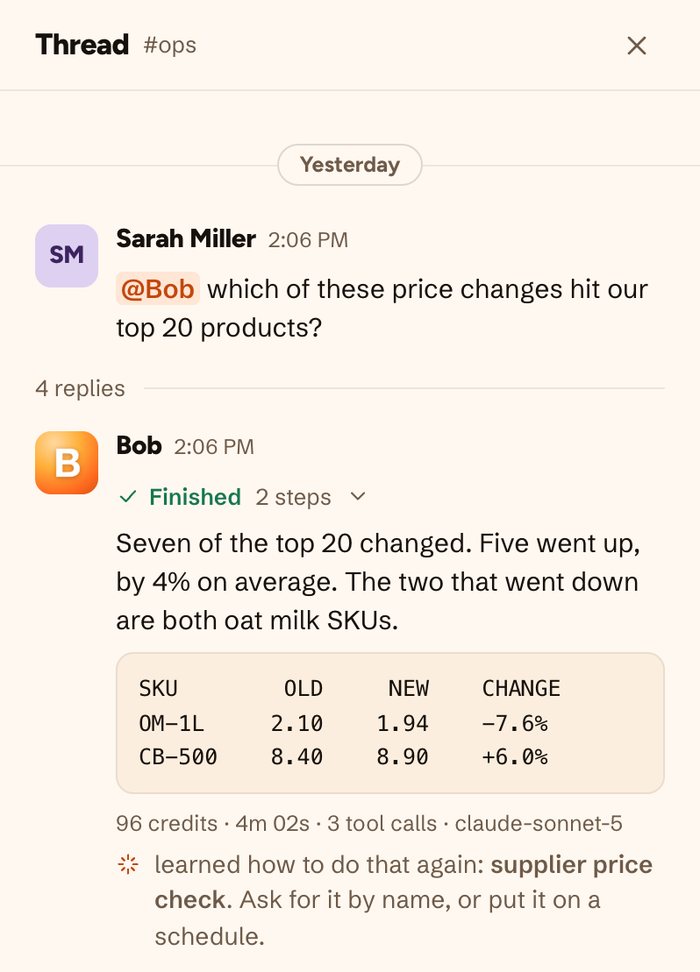
Short version: there is no import button, and you don’t need one. A Relay workflow had three parts: something that started it, an AI step, and a person who checked the result. In HeyBob, the start becomes a schedule, an inbox watch, an inbound email address or a webhook. The AI step becomes a plain-words instruction to Bob. The check becomes an approval card in Slack or the HeyBob app. Bob asks before acting, and you get a receipt on every run.
Relay.app deleted free accounts on August 15, 2026 and paid accounts on September 14, 2026. If you are here, your workflows are gone from Relay’s side and you are rebuilding. This guide does it one workflow at a time. It only describes what HeyBob does today. For the wider picture of where Relay users are going, see our Relay.app alternative page.
Step 1: write down what each workflow did
Before you set anything up, list your workflows. For each one, note four things:
- What started it. A time of day, a new email, a form or app sending data, or you pressing run.
- What the AI did. Summarize, draft a reply, sort, pull out fields, write a report.
- Who checked it. Which person approved or edited the result, and what they were looking for.
- Where it went. An email to a customer, a Slack post, a spreadsheet row, a CRM update.
If you saved the JSON export Relay offered before the shutdown, that is your best source. Attach it in a message to Bob and ask him to read each workflow back to you in plain words. Treat his summary as a checklist to confirm, not as something already set up. If you didn’t export, old notification emails and Slack posts from your workflows usually show what each one produced and when.
Step 2: match the trigger
Here is how Relay’s common starting points map to the ways Bob can start work.
| In Relay | In HeyBob |
|---|---|
| On a schedule | Say it in plain words in the channel where results should land: “every weekday at 8am, …”. Bob repeats back what he set up and when it runs next. |
| New email in Gmail | An inbox watch: Bob reacts to new mail in the inbox you connect. |
| Email forwarded in | Ask Bob for an inbound email address and forward to it. |
| Another app sends data (webhook) | Ask Bob for a webhook URL and paste it into the other app. |
| An app event with no webhook | A schedule that checks, for example every hour, set to post only when something changes. |
| Run by hand | Mention Bob in a channel or send him a direct message. |
When you set up any of these, Bob tells you which apps the job may use and whether it may change things in them. Read that list carefully. It is your permission, given up front, because nobody is there to press a button when the job runs. How scheduled jobs work.
Step 3: turn the AI step into an instruction
Relay had you fill in a prompt box inside a step. With Bob, the instruction is the whole job. Write it the way you would brief a new teammate: what to look at, what to produce, and where to put it. For example: “every weekday at 8am, read new emails to the support inbox, draft a reply to each one in our usual tone, and post the drafts here.”
Bob also recommends a model for each schedule and says why. You can pick a cheaper one if the job is simple. Choosing a model.
Step 4: rebuild the approval step
This is the step that matters most, and it works differently from Relay. When a person starts a job, Bob asks before acting on anything that changes an app. When a schedule or another automation starts it, he does not stop to ask by default, because nobody is watching. You have two honest ways to keep a person in the loop.
Option A (recommended): draft, then send from the thread
- Leave sending off the job’s app list, so it can read and draft but not send.
- Have it post each draft in a Slack channel.
- Whoever is on point replies in the thread and mentions Bob: “@Bob send this one”.
- Because a person started that send, Bob posts an approval card. For a Gmail or Outlook send, it shows who the email goes to, cc and bcc, the subject and the full body. On a Slack card, Edit lets you change a detail for that one send.
This is the closest match to a Relay approval step. The draft waits as long as it needs to, and nothing goes out until a person says so.
Option B: tell Bob to always ask
An admin can set an app or a single action to always ask on the Policies page. A schedule then raises an approval card before that action. The catch: if nobody answers, Bob nudges halfway through the wait, the card closes with “This approval timed out”, and he carries on without that step. Use this when the action is worth doing only with a yes, and skipping it is safe.
Who can approve
By default anyone in the workspace can answer a card. Admins can name the people who may approve cards that send something outward, and Bob mentions them on the card. A card about someone’s own mailbox can only be answered by that person. The receipt records who approved what. How approvals work.
Step 5: set your limits
Every run uses credits, and scheduled runs count against the workspace cap. Set a monthly cap for the workspace and a limit for each person, so a busy week never surprises you. That is spend caps per person and per workspace, on every plan. Credits and caps.
Step 6: test it, then watch the first week
- Run the job once by hand by asking Bob to do it now, and read the result.
- Check the receipt under the finished run: credits, time, tool calls and model.
- Ask “what ran this week” to see what each schedule did, whether it posted, and what it cost.
- In the HeyBob console, the Runs page sorts runs by cost, highest first, so the expensive ones are easy to find.
If a schedule fails three runs in a row, Bob pauses it and tells the channel. Say “resume” and its name to turn it back on. Type /bob schedules to see what is running. A workspace can have up to 25 active schedules.
A quick map, Relay to Bob
| Relay piece | Bob piece |
|---|---|
| Trigger | Schedule, inbox watch, inbound email address, webhook, or a mention |
| AI step | The job instruction, in plain words |
| Human in the loop | Draft in the channel and send from the thread, or always ask on the Policies page |
| Approver | Anyone in the workspace, or the people an admin names for outward sends |
| Run history | A receipt on every run, the Runs page, and the Activity page with CSV download for admins |
What this costs
Flex plans start at $75 a month per workspace for 40,000 credits, with no per-seat fees. Unused credits roll over one month, and $40 top-up packs of 20,000 credits never expire. You start with $100 of work on us. See pricing. Comparing tools first? See how Bob compares.
FAQ
Can HeyBob import my Relay.app export?
Not automatically. There is no import tool. You can attach the JSON export in a message and ask Bob to read each workflow back to you, then set each one up in plain words after you confirm it.
I didn’t export my Relay workflows. Can I still move them?
Yes, by describing them. Relay deleted all account data by September 14, 2026, so the export is no longer available. Old notification emails, Slack posts and screenshots usually show what each workflow produced, which is enough to brief Bob.
Will a scheduled job send an email without asking?
Only if you gave it permission to send when you set it up. Bob tells you which apps a schedule may use and whether it may change things in them. Leave sending off the list and have it post drafts instead, and a person sends each one from the thread.
What happens if nobody answers an approval card?
Bob nudges halfway through the wait. If nobody decides in time, the card closes with “This approval timed out”, and Bob carries on without that step and says so in the thread.
Do I have to use Slack?
Bob lives in Slack and in the HeyBob app for Mac, Windows and Linux. Approval cards appear in both.