
Huddles are where a Slack team decides things. Then the huddle ends, nobody wrote it down, and the follow-ups drift. This guide shows how to get notes, a summary and action items from a Slack huddle with the HeyBob app, and how to have Bob do the follow-ups. Every step below works in the app today.
The short version: HeyBob listens on your computer, so no bot joins the huddle. You get a name on every line, and when the huddle ends, Bob does the follow-ups.
Before your first huddle
1. Get the HeyBob app
Download the app for Mac (macOS 13 or newer) or Windows from the app page. Sign in with Slack, or with the email your invite went to. Meeting notes live in the Meetings tab.
2. Allow the permissions on a Mac
The first time you record, a Mac asks for Microphone and Screen Recording. Screen Recording is how macOS lets an app hear the sound your computer plays. HeyBob records sound only, never your screen. After you turn it on, quit and reopen HeyBob.
For names on the transcript, a Mac also needs Accessibility. That is what lets HeyBob read who Slack shows talking. The app asks for it beside the live meeting, and recording never waits on it. On newer macOS the switch sits under Privacy & Security > Device Control and Data Access. On Windows there is nothing extra to allow.
3. Have HeyBob notice your huddles (optional)
Open Meetings, then Meeting settings, and turn on Ask when I'm on a call. When Slack holds your microphone for a while, HeyBob asks: “Looks like you're in a meeting on Slack. Take notes with Bob?” It only checks which apps are using the microphone and never listens until you press Take notes.
During the huddle
4. Start recording
Join the huddle in Slack as usual. Then start notes one of three ways:
- Press Take notes when HeyBob asks.
- Open Meetings in the app and press Start recording.
- In Slack, open Bob's Home tab and press Record a meeting. It opens the app for you.
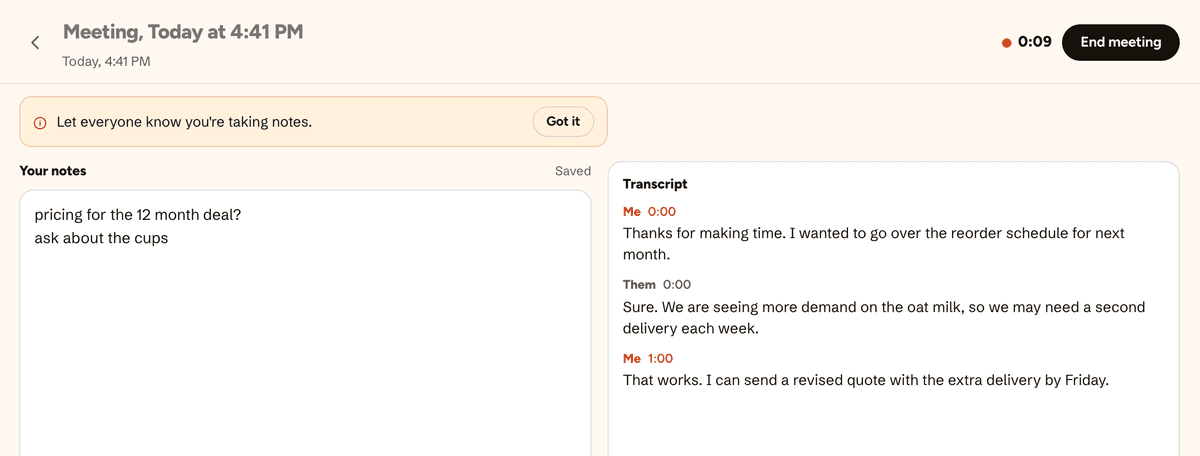
When recording starts the app reminds you to let everyone know you're taking notes. Say so in the huddle, the way you would before pulling out a voice recorder.
5. Type rough notes, or don't
The left pane is a notepad. Jot whatever matters to you. The right pane is the live transcript, about a minute behind the huddle. Lines are named after whoever Slack shows talking, whether the huddle runs in the Slack app or a browser tab.
6. Press End meeting
When the huddle wraps up, press End meeting. A minute or two later Bob has written three things: clean notes built from what you typed and what was said, a short summary, and the action items, with an owner when the huddle made it clear.
After the huddle
7. Hand the action items to Bob
Bob lists the action items in your DM with him, and the same list sits under your notes in the app. Each one has three buttons:
- Have Bob do it. He starts the job with the apps he is already connected to, the same as when you ask him in a message.
- Add to my to-dos. It goes on your own list, where Have Bob do it is still one tap away later.
- Skip. He does nothing.
Nothing runs until you tap. Anything that sends or changes something outside HeyBob follows your approval rules, so by default Bob asks before acting, and every run ends with a receipt.

8. Post the summary back to the channel
Bob also asks in your Slack DM whether to post the summary somewhere. Pick a channel and press Post it, or press Don't post. He posts only the summary, never the transcript or your own notes. For a private channel, invite Bob to it first.
9. Share it, or ask about it later
A meeting belongs to whoever recorded it. To let teammates read the notes, share them from the app. And a week later you can ask Bob “what did we decide in the huddle about pricing?” He searches the meetings you recorded. Only yours.
Good to know
- The audio is not kept. It goes up a minute at a time to be turned into text and is then discarded. The text stays, and you can delete a meeting for good once it ends. More in privacy and memory.
- Huddles cost half. Transcription and notes use credits at half the usual rate. Spend caps per person and per workspace cover meetings too. See credits and spending caps and pricing.
- If a name doesn't come through, the app numbers each voice, Person 1, Person 2 and so on. Name them or merge two into one afterwards.
- Desktop only for now. Recording works in the app on Mac and Windows. A phone app is on the way.
- Bob can be wrong. Like any AI, he can miss or misread something. Read the notes before you act on them.
For how bot-free notes work on any call, read meeting notes without a bot. For templates and follow-ups that run on their own after each kind of meeting, read an AI meeting assistant that does the follow-ups. Comparing note-takers? See Bob vs Granola.
Common questions
Does a bot join the Slack huddle?
No. The HeyBob app listens to your microphone and the sound your computer plays. Nothing joins the huddle and nobody sees an extra guest.
Do I need to install anything in Slack?
No. HeyBob never connects to the huddle. If your team already has Bob in Slack, his Home tab has a Record a meeting button that opens the app for you, but you can also start straight from the app.
Does it know who said what in a huddle?
Yes. The transcript names whoever Slack shows talking, in the Slack app or a browser tab. On a Mac that needs the Accessibility permission. If a name cannot be read, the app numbers each voice and you can name or merge them afterwards.
Will Bob post the transcript to the channel?
No. When the notes are ready Bob asks in your DM where the summary should go. He posts only the summary, never the transcript or your own notes, and only if you pick a channel.
What does a huddle cost?
Meetings use credits at half the usual rate, from the same pool as the rest of Bob's work. Work Bob does afterwards is billed like any other request, and your spend caps cover both.